Tablet Pro 7
Tablet Pro 7
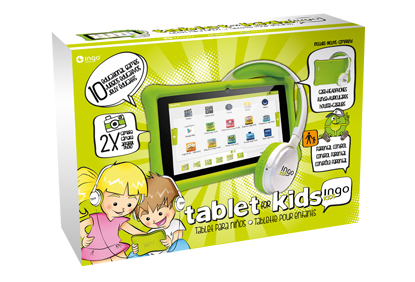
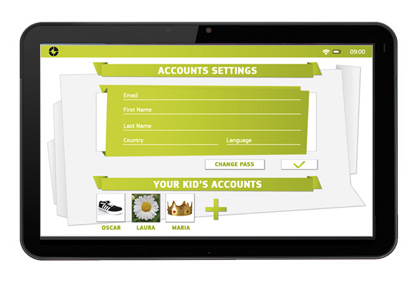
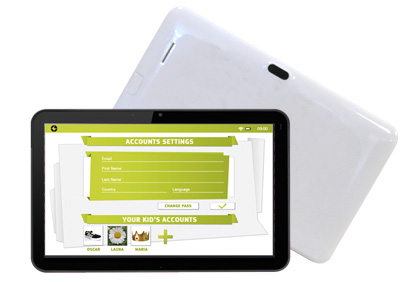
Tablet Pro 7 Ingo Devices with 7 "screen, front and rear camera and wifi android 4.1 system. Includes IngoKids parental control software with multiple user accounts to manage time ed use, online acesos and filter applications.Available in different colors

Features
EAN code
8436539203551
Commercial Product Code
INU007D
Screen
7"
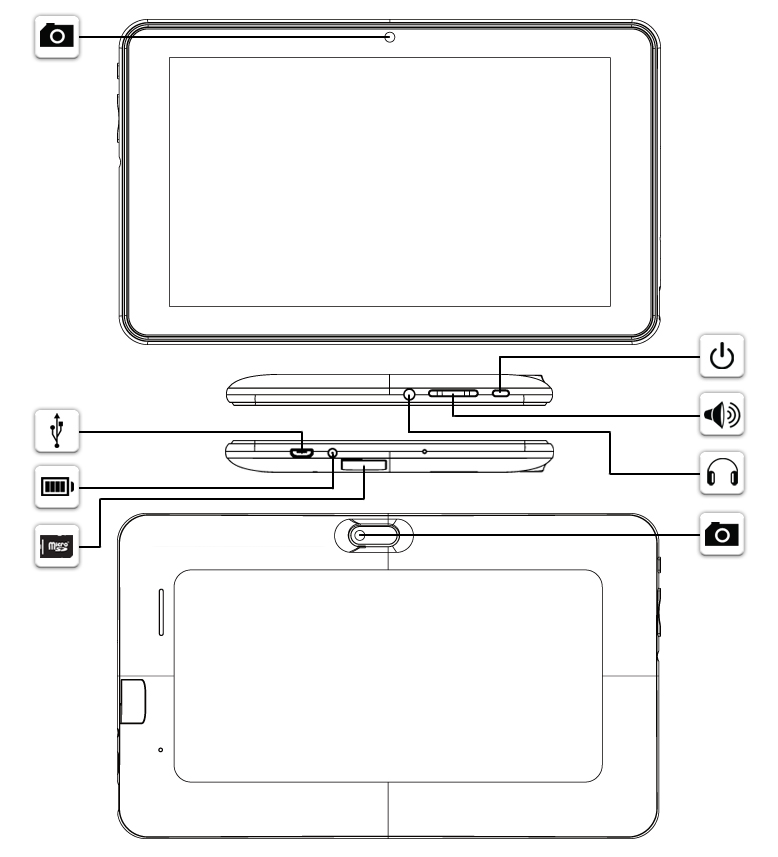
Front camera
0.3 mpx
Back Camera
2 mpx
CPU
1.2 GHz
RAM memory
512 MB
Flash memory
4 GB
WiFi
Si
Operating system
Android 4.1
Accessories
-
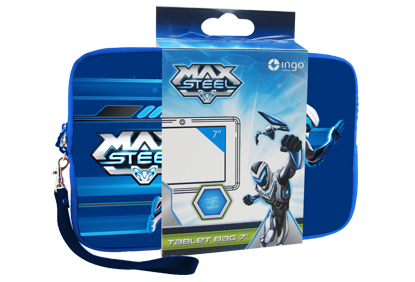
Tablet Bag
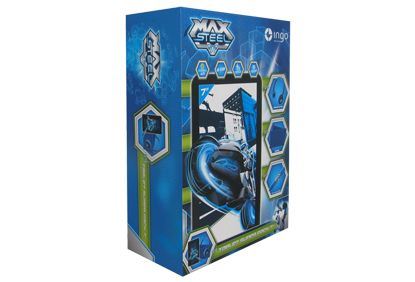
Case of Max Steel Tablet that lets you save the tablet from bumps and scratches ...Discover more > -
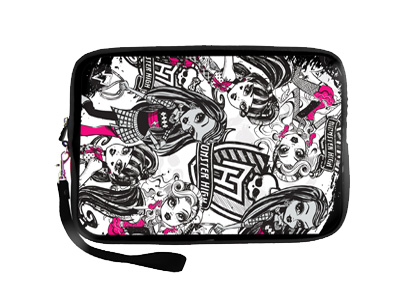
Tablet Bag
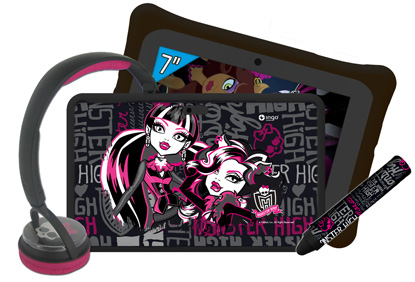
The new neoprene Monster High Tablet case keeps your tablet safe with a zip ...Discover more >
-
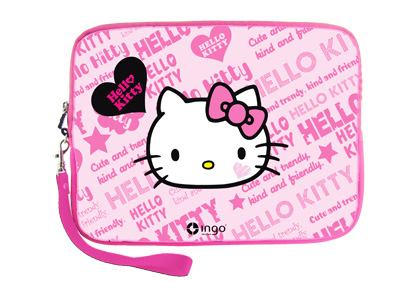
Tablet Bag
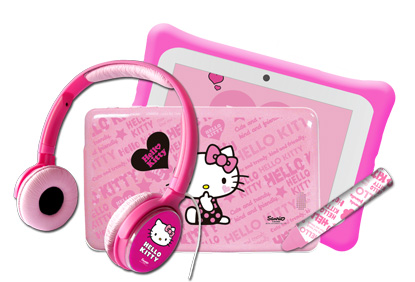
The new neoprene Hello Kitty Tablet case ...Discover more >
-
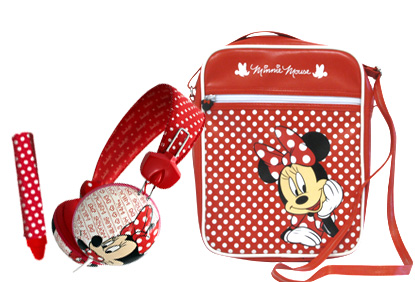
Tablet Accessories Pack
Take your tablet wherever you want, listen to your favorite music and precise ...Discover more > -

Accessories Pack
With the Violetta accessory pack take your ...Discover more >
-
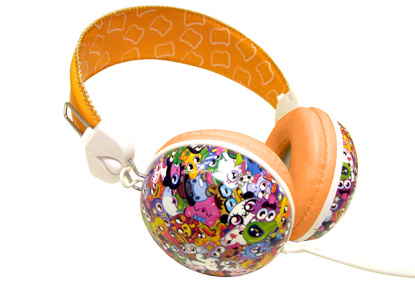
Tablet Accessories Pack
Take your tablet with you wherever you go, listen to your favourite music ...Discover more >
-
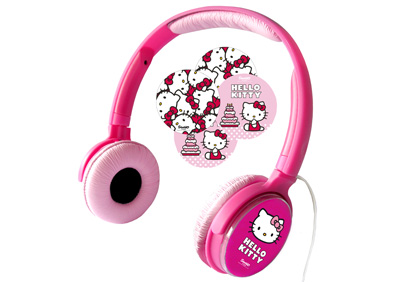
Headphones
Hello Kitty presents us with their latest Headphones. More power to listen, ...Discover more > -
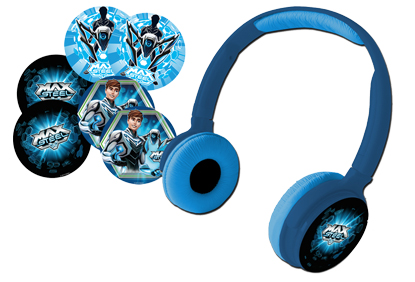
Headphones
Headphones audio Max Steel Butt turbo!. More powerful, longer cable and all ...Discover more > -
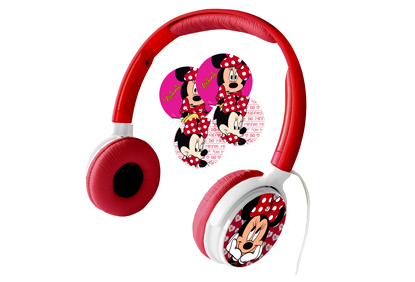
Headphones
Minnie Mouse presents us with their latest Headphones. More power to listen, ...Discover more > -
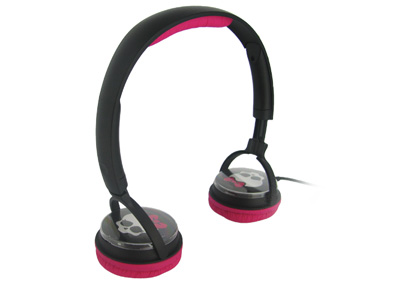
Headphones
Monster High presents us with their latest Headphones. More power to listen, ...Discover more > -
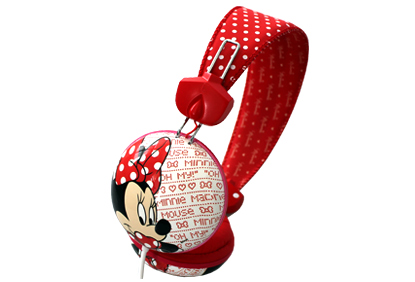
Headphones Premium
Design and quality join forces to create new Headphones Premium from Minnie. ...Discover more > -
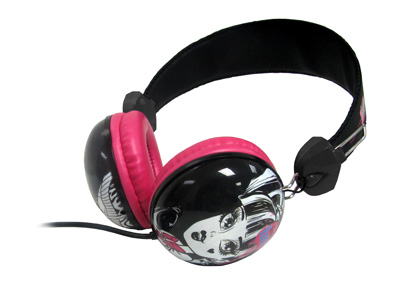
Headphones Premium
Design and quality join forces to create new Headphones Premium from Monster ...Discover more > -

Headphones Premium
Design and quality join forces to create new Headphones Premium from Hello ...Discover more > -
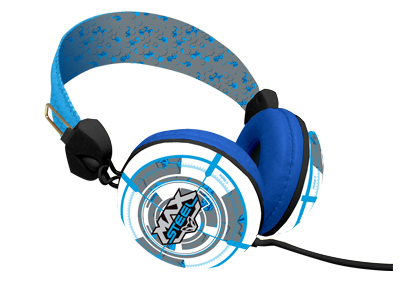
Headphones Premium
Max Steel Premium Headphones with unique design and premium quality. With this ...Discover more >
Manuals
Manuals
Other manuals >F.A.Q.
An update message has appeared on my screen, Should I update it?
At Ingo Devices we are constantly working to improve our products. The updates will improve the function, process and performance of your device.
How delete a Google account?
If an account is added, the account is shown in “Accounts & sync” of “Settings”, where you may also add another account. To delete an undesired account, go to “Settings” > “Privacy settings” > “Factory data reset”. Your tablet’s internal storage, installed apps, etc. will also be deleted, except pre-installed apps and the data in your flash memory. Be careful before you carry out this operation
Application not workable
Not all Android apps are compatible with all Android devices. If you have downloaded the app try to download it again and reinstall it.
Application not workable
Not all Android apps are compatible with all Android devices. If you have downloaded the app try to download it again and reinstall it.
Screen drift or unresponsive screen
To correct it, you may go to Settings > Accessibility > Touch panel calibration to calibrate it; In case calibration can’t be carried out, you may press the power button for about 15 seconds to force the tablet to shut down. Calibration will be automatically done as soon as you start up your tablet again. Use a USB mouse to carry out calibration operations on your tablet.
Tablet gets locked and doesn’t respond to touch or buttons.
Reset your tablet. You can use a pin to stab the reset hole to restart your tablet
Loud noise from earphones or speaker
Check if there is dust in the earphone or speaker. Check if the file is broken
Tablet doesn’t power ON.
Check the tablet’s power level, charge it with the adaptor for 2 hours and check again.. Or connect your tablet with your computer via USB cable to see if it can be powered on.
Why it says there is an error with the LAUNCHER app?
In some units we have detected an error when you select “Zoom to fill screen” in the screen main settings. In order to solve the issue we must press the icon of the screen settings (Placed in the low right corner of the screen with 4 diagonal arrows) and select the first option “Stretch to fill screen” and press Accept in the error message that it appeared. Once this option is selected the tablet will work perfectly.
The tablet sound is low, is it normal?
The tablet volume is limited to 85dBm this is according to the newest European Union safety standards to protect children ears. To ensure the maximum volume you must ensure that it’s placed at its maximum level pressing the + key that you have in the top corner of the tablet. Also we recommend you to have the speaker uncovered, since if we leave the tablet in a desk the speaker will be covered and it will sound low.
Can you charge the Tablet with a USB port?
No, due to the internal battery durability the tablet can only be charged with the charger included in the box.